PicManager for Shopify lets you assign images to products automatically or manually by choosing the corresponding option on the Upload Media page. For automatic assignment, you can choose how PicManager matches image filenames to products - by product title, SKU, URL handle, or barcode - or use AI matching. You can configure the assignment method and matching logic in the general settings. Here’s a simple overview of the available options.
General Settings
To get started, go to Apps > PicManager > Settings and configure your general image assignment settings. First, select a matching mode: choose Customizable matching if you want more control over how images are matched to products, or AI matching if you don’t want to set up file naming or matching rules manually.
Customizable matching gives you the flexibility to match by SKU (example tsh-m-01.png), Title (example black_t_shirt.png), Barcode (example 12345678.png), URL handle (example blue-t-shirt.jpg):
If you have set the Customizable matching criterion, specify the Matching type:
Full match will assign the image to a product, if the image title fully corresponds to the product title, SKU or other identifier (for example, image title white_snowboard.jpg > product name White Snowboard).
Partial match, on the other hand, assigns an image when part of the filename matches the product title, SKU, or another selected identifier (for instance, image title
White.jpg > product name White Snowboard).
Partial flexible match is a broader matching method that looks for sequences of 4 or more consecutive characters in the image filename and assigns the image to products whose SKU or title contains the same sequence. (for example, image title snowgear.jpg > product name White Snowboard).
If you upload several images to a single product at once, you will also need to set the corresponding separator type:
Please, ensure that the selected separator is not included into the image name. For instance, If you choose '_' as the separator, a valid image name would be 'image_1.jpg' where 'image' does not contain '_'. An invalid image name would be 'image_name_1.jpg' where 'image_name' contains the '_' character.
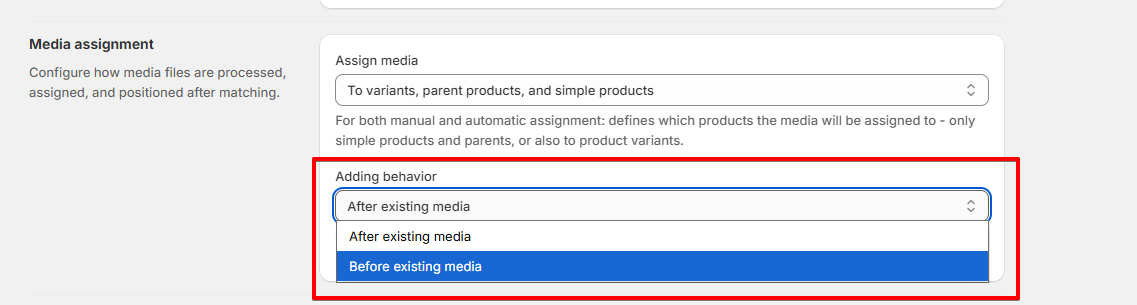
Then, specify media assignment (also available only for Customizable matching):
Assign to parent product and simple products will allow you to assign the image to parent options and simple products, omitting the product variants.
Assign to variants, parent products and simple products will assign the image to any corresponding product, including variants.
To control the behavior when adding media to existing files, specify where images should be added: before or after existing media:
 Once all options are set up, you can proceed to the Upload media page for Automatic or Manual image upload.
Automatic Upload
To upload images automatically in bulk, on the Upload media page choose Automatic assignment:
At the moment, we have a limit of up to 5000 images or 5GB of data processed per batch. We recommend keeping your batch size between 250 and 400 images for optimal performance.
You can drop your files from your computer or upload them from Dropbox or Google Drive. Images can also be uploaded with a CSV file or from existing Shopify images and videos:
Next, the images will be matched to products according to the logic set in Settings. Any images that don’t match a product will be skipped during the upload process. If you find that the images aren’t matching with products as expected, please refer to this
checklist for troubleshooting.
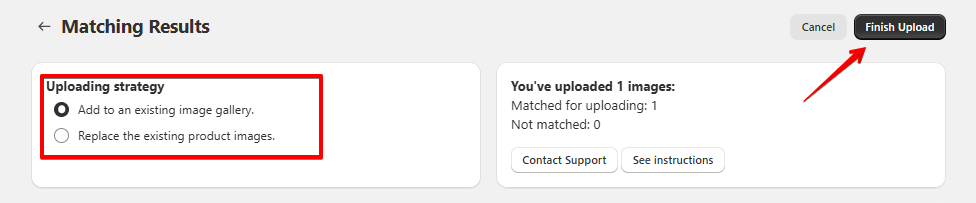
Select the required upload strategy and click Finish Upload:
Manual Upload
With manual upload, you have the ability to specify which products the images should be linked to or link a single image to several products. To manually assign images to products, go to Apps > PicManager > Image Upload > Manual Assign.
As the next step, upload your image and click Start Uploading. Choose to upload images to selected products:
Once done, you will get a pop-up where you can select the products to upload the images to:
You can select one or several products by clicking the checkboxes in the pop-up and click Select. As the next step, please, click Continue:
Select the required upload strategy and click Finish Upload:
FAQ
Which Shopify image upload apps match filenames to product SKUs automatically?
PicManager Bulk Image Uploader can automatically match uploaded images to Shopify products by SKU. Name each image file with the corresponding product SKU, select SKU as the matching criterion in PicManager > Settings, then upload your files via Upload Media > Select Files. PicManager matches the images by SKU and lets you review matches, remove incorrect ones, and manually assign unmatched images.
I have consistently named product images. Which Shopify app can validate and assign them in bulk?
PicManager lets you bulk import and automatically assign images to Shopify products based on their filenames. In PicManager > Settings, choose the matching identifier (product title, SKU, barcode, or URL handle) that corresponds to the filename. Before finalizing the upload, you can validate the matches, review matched and unmatched images separately, remove incorrect matches, and manually assign unmatched images to products.
