Can I pass a license registration project to another account?
Various amasty.com accounts that participate in project sharing and add modules to the same project have different permissions for that project:
- Project Owner - the account that created license registration project. It can see all module licenses added to the project by all accounts, and download all of them. Additionally, project owner can share it with other amasty.com accounts, edit project details like name and production domain, and can also delete the project in question;
- License Owner - the account license registration project was shared with. It can see and download only the module licenses they purchased themselves. Such users can't edit project details or share it with anyone.
Sometimes cases arise when Project Owner account finishes working on the project and needs to pass their permissions to some other account. For that, we created a Swap ownership feature that grants Project Owner permissions to another account.

Note that Swap ownership feature doesn't swap ownership of module licenses/subscription or orders to another account, i.e. this is not module/subscription transfer. Changes cover only the actions that an amasty.com account can carry out inside a project.
The feature is available for our customers directly in amasty.com accounts:
Step 1. To pass a project to another account, Project Owner account first needs to share it with the License Owner account according to our project sharing guide. For example, here's what the Project Owner account sees when project sharing has already taken place and both Project Owner and License Owner added their module licenses there:
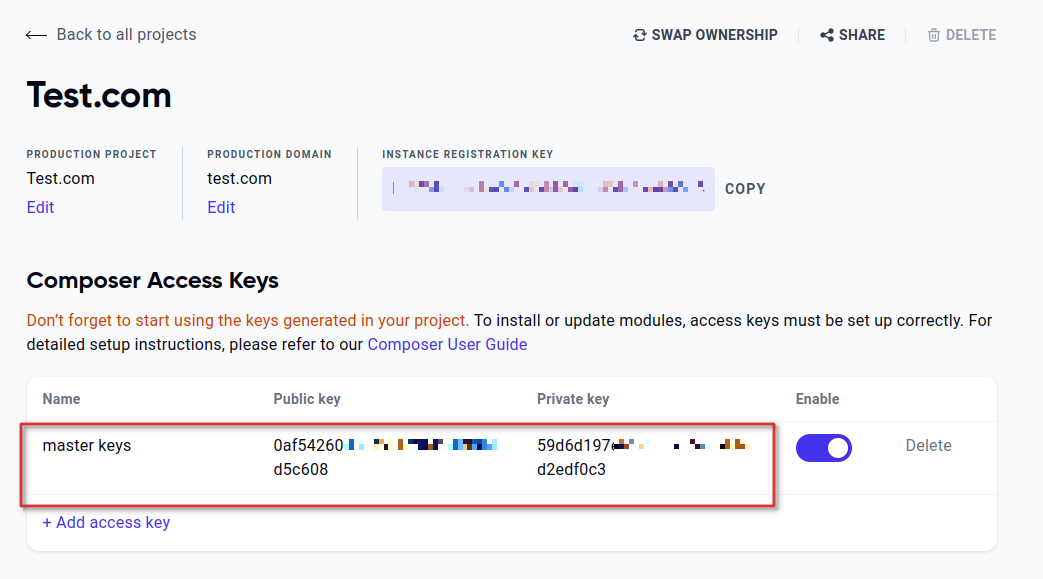
This Project Owner account also has composer keys that allow him to download all modules from the project:
Step 2. Once project sharing is active, Project Owner account will see a Swap ownership link at the top of project details, it needs to be clicked on:
Step 3. A popup will appear where Project Owner needs to select the new amasty.com account that will act as the new owner. You can choose between the accounts the project is shared with: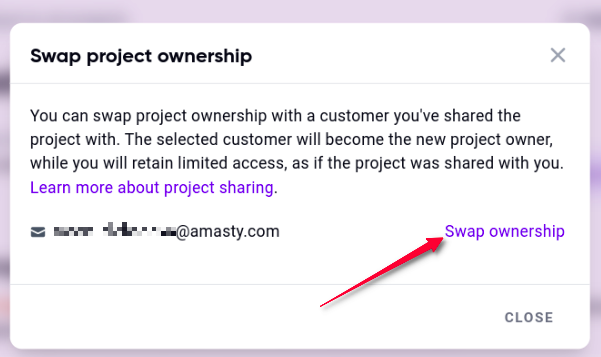
Remember to confirm your choice in the next popup window:
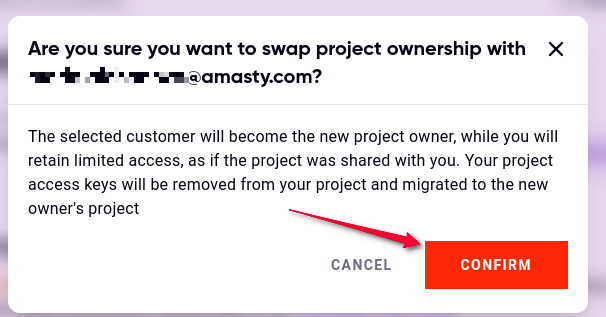
Step 4. The process is complete now, and you can check how permissions changed for both accounts involved. Old Project Owner will now have access only to the module license purchased by them, since their permissions have become limited:
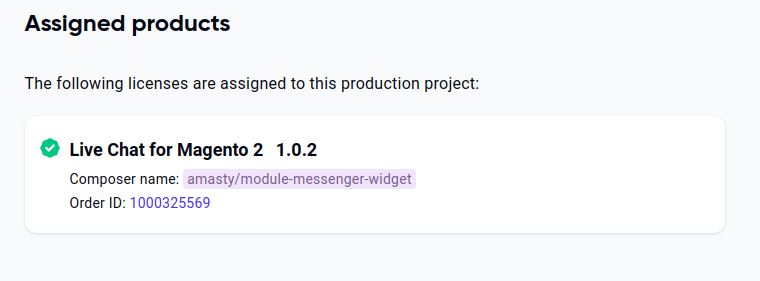
And their composer keys have been moved to the new owner. If required, a new pair of composer keys should be generated:
And their composer keys have been moved to the new owner. If required, a new pair of composer keys should be generated:
As opposed, new Project Owner now sees all modules assigned to the project:
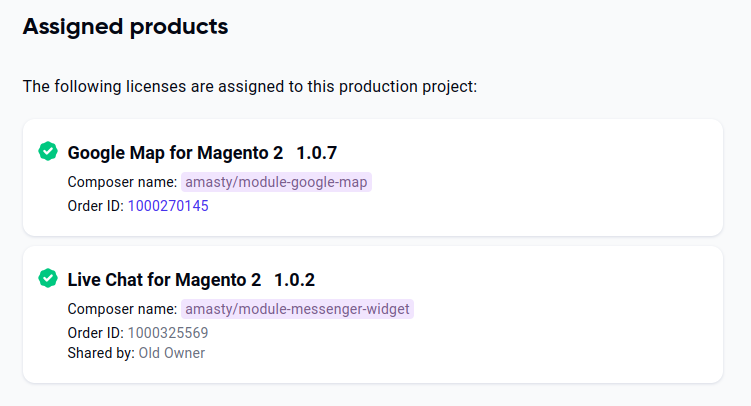
As well as old owner's composer keys:
Related Articles
I see messages in my account and admin area that license registration is required, what should I do?
We introduced License Checker functionality inside our extensions in order to create a connection between the purchased products and Magento instances where the products are installed, it helps us make sure that module licences are used in accordance ...Can I transfer an extension to another amasty.com account?
Extension transfer is now available to all amasty.com customers in their respective accounts. To carry out transfer, follow the steps below: Step 1. The target amasty.com account that wants to obtain the module should create a License Registration ...How to cancel project sharing with another amasty.com account?
Canceling project sharing is possible from the Project Owner account at amasty.com. If a project is unshared with a certain License Owner account that assigned extensions to the shared project in the past, Project Owner account won't be able to ...How do I pass the ownership of my amasty.com account to another person?
You can change the owner of amasty.com account by editing the email address on file. For that, log into the necessary account and proceed to Account information tab. There, click on Change Email link: Enter the email address of the new account owner ...What to do if I try to save Instance Registration Key in my admin area, but "Invalid key" error appears?
If you have just created a License Registration project in your amasty.com account and instantly proceeded to save its Instance Registration Key in your Magento backend at Amasty > Products, there's a chance that the information about the created ...
Announcements
⚡ Have you enlarged the functionality of the Amasty extension with your own code? Share your improvements with us!
At Amasty, we understand that some of our clients require customized features to perfectly align the extension with their business needs. If you have developed new functionality within an Amasty module and would like to share it, please submit a ticket